Advanced Settings
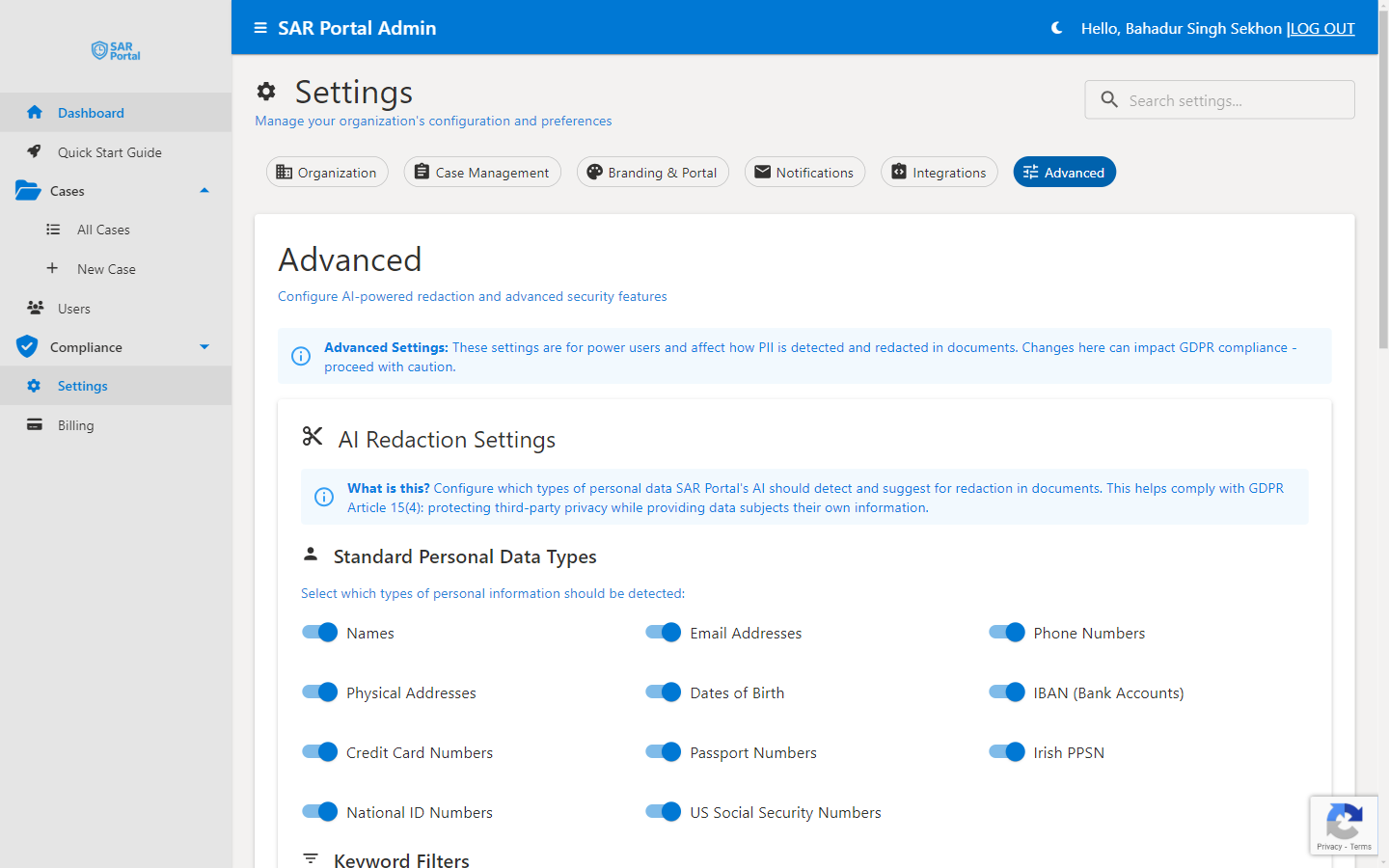
The Advanced settings section contains powerful features for AI-powered document redaction and security configurations. These settings can impact GDPR compliance - proceed with caution.
AI Redaction Settings
What Is AI Redaction?
SAR Portal’s AI automatically detects and suggests redaction of personal data in documents. This helps comply with GDPR Article 15(4): protecting third-party privacy while providing data subjects their own information.
How It Works
- Upload documents to a case
- AI scans for personal information
- Detected PII is highlighted for review
- You approve or reject suggested redactions
- Clean copies are generated for disclosure
Standard Personal Data Types
Configure which types of personal information the AI should detect:
Identity Information
| Data Type | Description | Default |
|---|---|---|
| Names | Full names, first/last names | Enabled |
| Email Addresses | Email addresses in any format | Enabled |
| Phone Numbers | Phone numbers in various formats | Enabled |
| Physical Addresses | Street addresses, postal codes | Enabled |
| Dates of Birth | Birth dates in various formats | Enabled |
Financial Information
| Data Type | Description | Default |
|---|---|---|
| IBAN (Bank Accounts) | International bank account numbers | Enabled |
| Credit Card Numbers | Credit/debit card numbers | Enabled |
Government Identifiers
| Data Type | Description | Default |
|---|---|---|
| Passport Numbers | Passport document numbers | Enabled |
| National ID Numbers | National identification numbers | Enabled |
| Irish PPSN | Irish Personal Public Service Numbers | Enabled |
| US Social Security Numbers | US SSN format | Enabled |
Enabling/Disabling Detection
- Go to Settings > Advanced
- Toggle each data type on or off
- Disabled types won’t be flagged for redaction
Keyword Filters
Custom Keyword Detection
Add custom keywords that should be flagged during document processing:
- Company-specific terms
- Project code names
- Sensitive categories
Adding Keywords
- Go to Settings > Advanced > Keyword Filters
- Enter keywords to detect
- Save changes
Use Cases
- Flag mentions of specific products
- Detect internal project names
- Identify sensitive department names
Redaction Behavior
Confidence Thresholds
Configure how certain the AI must be before flagging something:
| Level | Description |
|---|---|
| High | Only flag when very confident |
| Medium | Balance between false positives and misses |
| Low | Flag more items (more manual review) |
Redaction Style
Choose how redacted content appears:
| Style | Appearance |
|---|---|
| Black Box | Solid black rectangle |
| Blur | Blurred/pixelated content |
| Replacement | Replace with [REDACTED] |
Security Settings
Session Timeout
Configure automatic logout after inactivity:
| Setting | Options |
|---|---|
| Timeout Period | 15, 30, 60, 120 minutes |
| Warning | Show warning before logout |
IP Restrictions
Limit access to specific IP addresses:
- Whitelist office IP ranges
- Block unknown locations
- Enterprise feature
Audit Logging
All actions in Advanced settings are logged:
- Who made changes
- What was changed
- When changes occurred
Best Practices
Start with Defaults
The default detection settings work well for most organizations. Only disable types if you have a specific reason.
Test Before Production
After changing settings:
- Upload a test document
- Review AI detections
- Verify correct behavior
- Adjust as needed
Regular Review
- Review AI accuracy periodically
- Adjust sensitivity based on results
- Update keyword lists as needed
Document Your Choices
Keep records of:
- Why certain types are disabled
- Custom keywords and their purpose
- Any non-default settings
Troubleshooting
Too Many False Positives
If the AI flags too much:
- Increase confidence threshold
- Disable irrelevant data types
- Review flagged items are truly not PII
Missing Detections
If the AI misses PII:
- Lower confidence threshold
- Ensure data type is enabled
- Add specific keywords
- Contact support for pattern updates
Performance Issues
Large documents may process slowly:
- Normal for documents with many pages
- Processing happens in background
- Status shows in document list
Related Settings
| Section | What It Does |
|---|---|
| Case Management | Configure how cases are handled |
| Integrations | API and webhook settings |
| Organization | Company profile settings |